Skip to Content
For Auto Transport Carriers

Drive the Load.
We’ll Support the Operation.

Use one clear starting point for carrier setup, portal access, available load requests, inspections, documents, and help when a move does not go as planned.

Carrier Connections

Request Loads Through Super Dispatch

One request path keeps the load, company record, and response together. A request is not a reservation or dispatch confirmation.

Already Connected with Fusion?

Send the Load Request Where Our Team Can Act on It

All load requests must be submitted through the official Super Dispatch Carrier TMS. It gives the team the information needed to review availability and respond without losing the request in texts or separate email threads.

  • Use the carrier and company information that matches your Super Dispatch profile.
  • Request only the loads your equipment, route, and schedule can support.
  • Wait for Fusion's written dispatch confirmation before treating a load as assigned.

Request a Load in Super Dispatch
Report a Damage

Tell Us Early. Preserve the Record.

If damage is reported or suspected, secure the vehicle, avoid assigning blame, preserve both inspections, and send the facts to Fusion. This form creates a dedicated damage report for our operations team; it is not a customer sales inquiry.

01
Call the OfficeUrgent issues should be reported immediately, before leaving the location whenever possible.
02
Keep the EvidenceInclude pickup and delivery inspections, photos, video, signatures, and the BOL.
03
Submit One Clear ReportUse the load number and explain what happened in chronological order.
Private operational intake

Use the Shared Vehicle Damage Report

The dedicated form asks who is reporting, the Fusion load number or VIN, what happened, when and where it happened, and the original evidence files. It creates one private operational record for review.

  • Up to 10 evidence files, 100 MB each
  • Private Odoo attachments
  • Confirmation reference for follow-up
Open the Damage Report Review Driver Inspection Instructions

For an active safety issue or a vehicle that cannot be released, call +1 (954) 751-6645 immediately.

A Clear Working Standard

What We Expect on Every Move

Good carrier relationships are built on accurate inspections, timely ETA replies, early problem reporting, safe handling, and complete delivery records.

01

Confirm Before Pickup

Review the vehicle, locations, contacts, timing, equipment, and special instructions before heading to the pickup.

02

Document the Condition

Complete the assigned inspection before movement and capture clear, useful evidence of the vehicle’s condition.

03

Communicate Early

Reply to ETA requests and tell Fusion promptly when timing, access, condition, route, or customer circumstances change. Early notice gives the team options.

04

Close the Load Carefully

Complete the delivery inspection, obtain the required acknowledgment, and upload available BOL or delivery documentation.

Auto transport carrier completing a digital vehicle inspection before pickup
Inspect first. Move second.A careful pickup record protects the vehicle, carrier, customer, and working relationship.
Super Dispatch Inspections

Make the Record Clear Before the Wheels Turn

Inspection is a fundamental part of every vehicle move. When a load uses a Super Dispatch inspection, complete every required step at pickup and delivery. Do not rely on memory or wait until after leaving the location.

01

Capture the Full Vehicle

Use clear, well-lit photos from the required angles. Include identifying and condition details requested by the inspection workflow.

02

Mark Existing Condition Accurately

Record visible pre-existing condition before loading. The notes and photos should tell the same story.

03

Review Before Signature

Give the pickup or delivery contact an opportunity to review the recorded condition before completing acknowledgment.

04

Never Skip a Failed Step

If the app, link, signature, or upload is unavailable, call Fusion before leaving and use the documented paper-and-photo backup.

Why It Protects You

A Complete Inspection Helps Separate New Damage from Pre-Existing Condition

Clear pickup and delivery records can protect a carrier from being held responsible for damage the carrier did not cause. Wide views establish the complete vehicle; close views document specific marks.

Location Evidence

Pickup and Delivery Photos Can Carry GPS Location Data

When device location permissions and the Super Dispatch inspection workflow support it, location data is collected with inspection activity. That evidence helps show where the pickup or delivery record was created.

Good Inspection Angles

Show the Whole Vehicle Before You Show the Detail

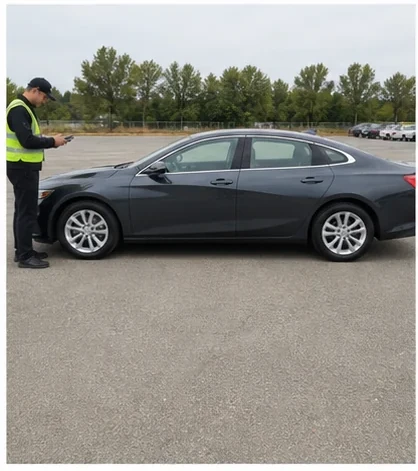
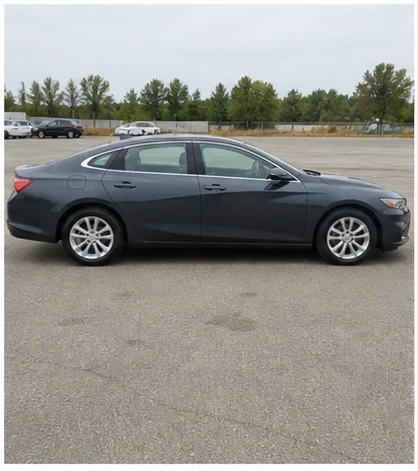
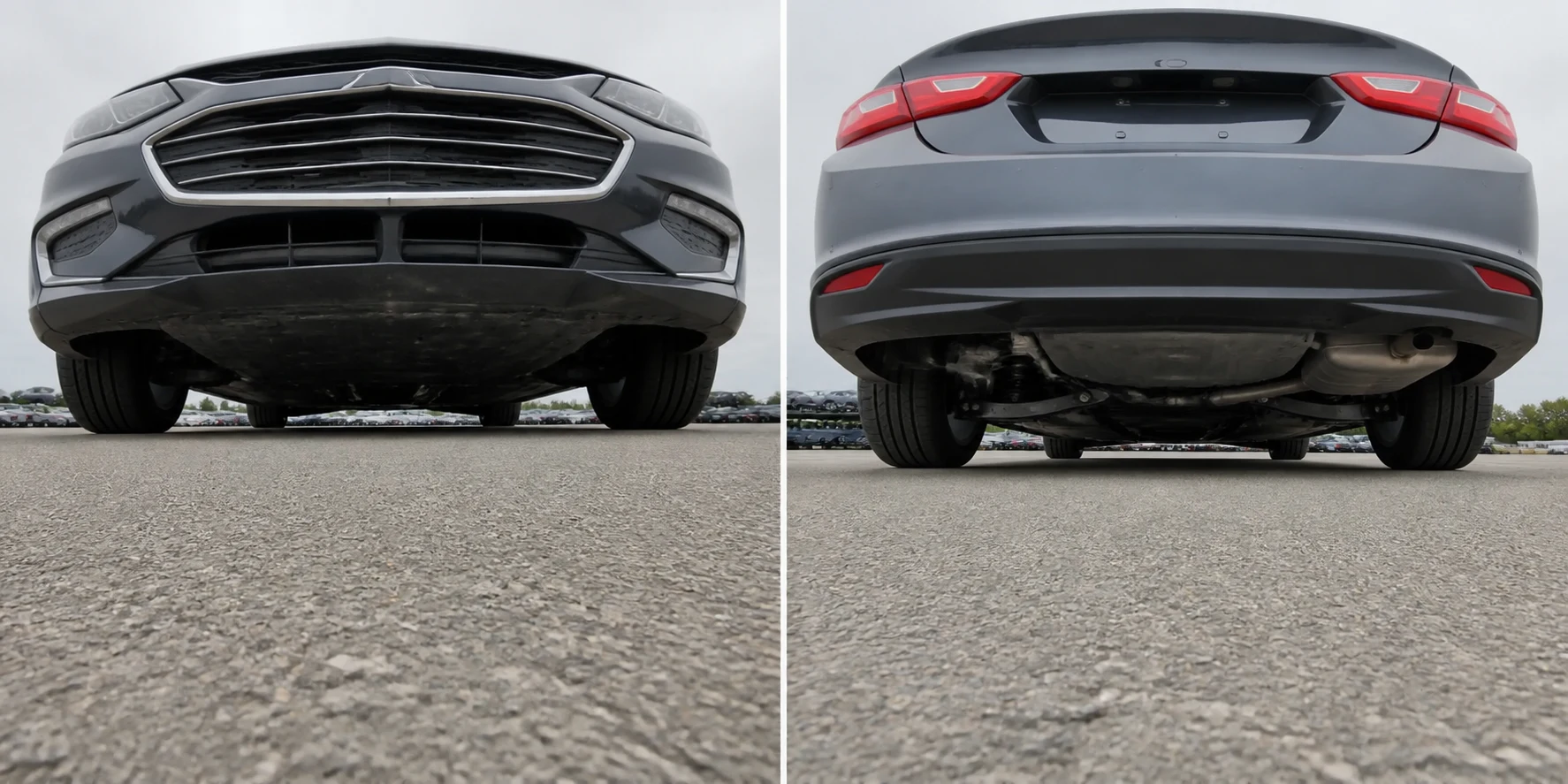
Take stable, well-lit photos with the entire side or corner visible. Add close condition photos and safe, low-angle views beneath the front and rear bumpers while keeping yourself and the camera outside the vehicle footprint.

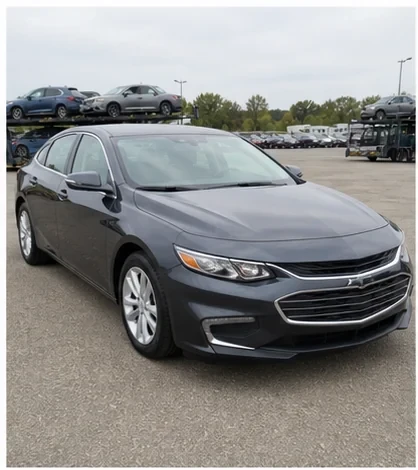
Front driver-side three-quarter inspection photo
Front Driver-Side Corner
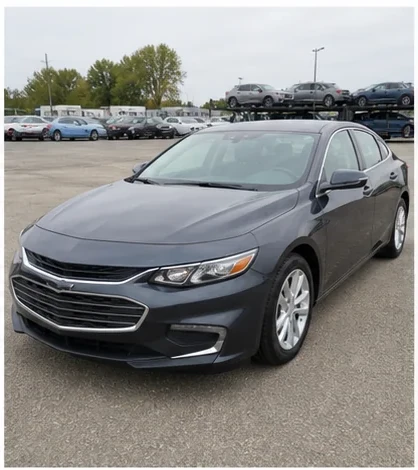
Front passenger-side three-quarter inspection photo
Front Passenger-Side Corner
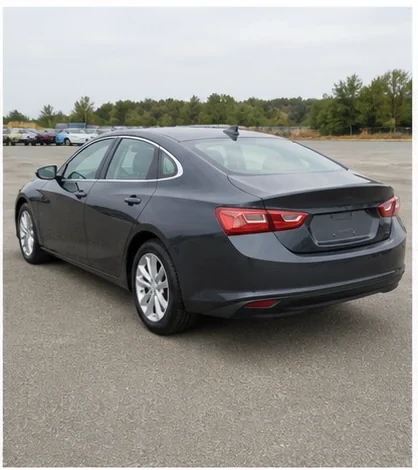
Rear driver-side three-quarter inspection photo
Rear Driver-Side Corner
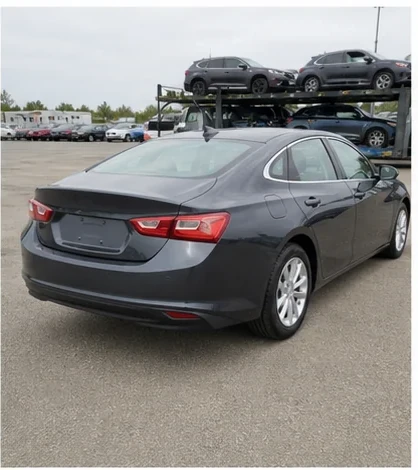
Rear passenger-side three-quarter inspection photo
Rear Passenger-Side Corner
Full driver-side inspection photo
Full Driver Side
Full passenger-side inspection photo
Full Passenger Side
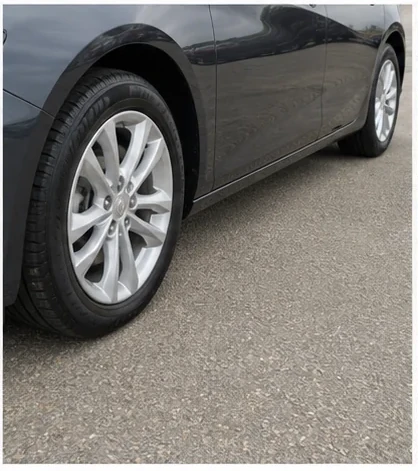
Wheel and lower body-panel inspection detail
Wheel and Lower Panel
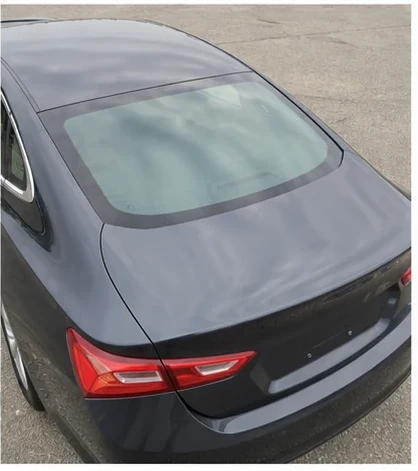
Roofline and glass inspection detail
Roofline and Glass
Two safe low-angle vehicle inspection photographs showing the area beneath the front bumper and beneath the rear bumper
Beneath the Front BumperBeneath the Rear Bumper
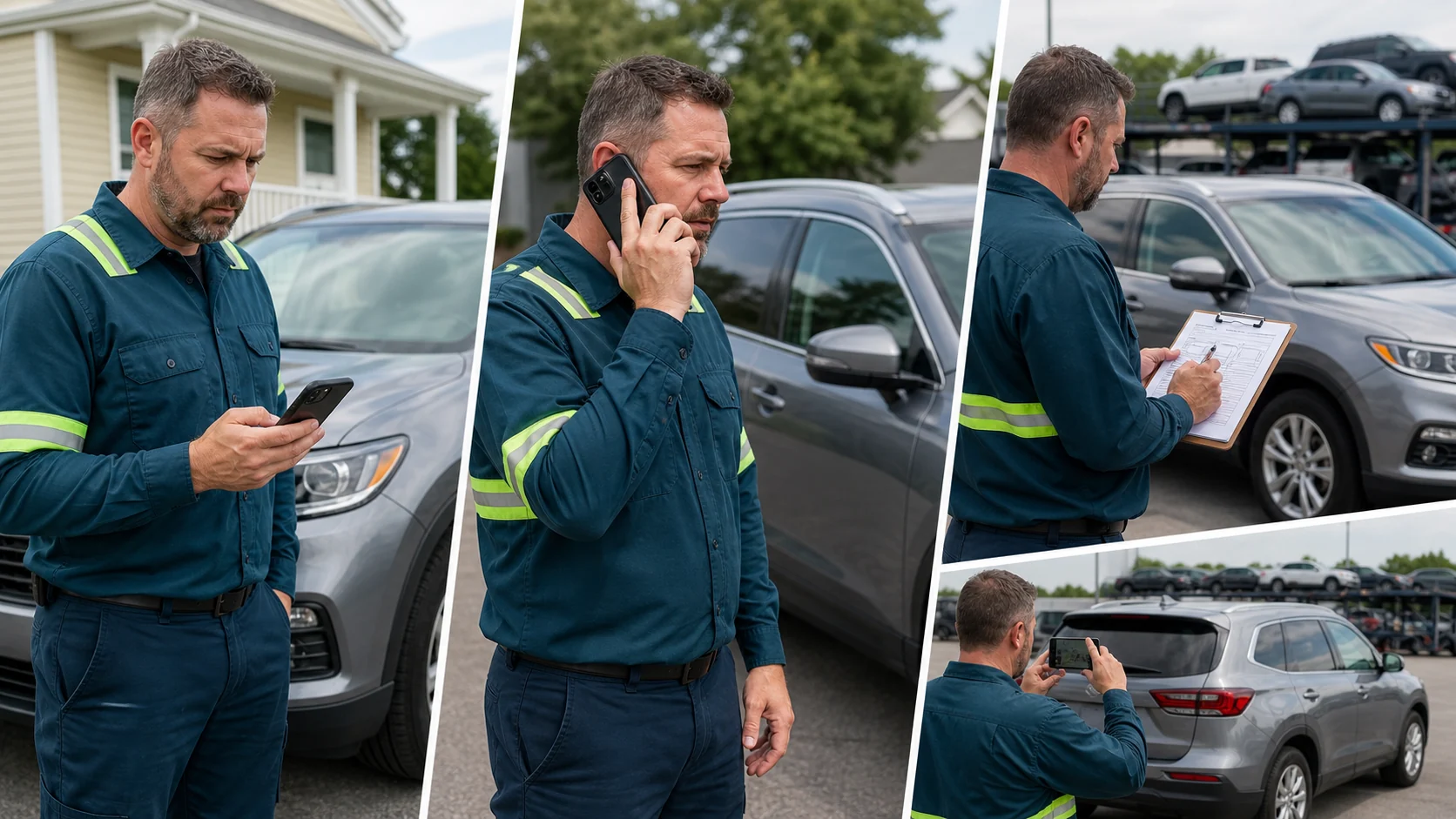
Carrier calling the Fusion office while documenting a vehicle with a paper bill of lading and pickup photos
When Technology Does Not Cooperate

Call First. Use the Paper BOL. Keep Taking Photos.

A technical problem never removes the need for an inspection record. Call the Fusion office before leaving so the operations team knows what failed and can give load-specific direction.

  1. Call Fusion immediately.Explain whether the app, link, signature, photo upload, or connection failed.
  2. Complete a legible paper BOL.Record pickup condition, delivery condition, signatures, dates, times, and notes.
  3. Take pickup and delivery photos.Preserve wide vehicle views and close condition details, then send or upload them as instructed.

Your load-specific BOL is already waiting in the Carrier Portal. Use the prefilled BOL for the assigned load whenever it is available. Keep the fillable blank BOL as the backup when the portal or app cannot be reached.

Call the Fusion Office: +1 (954) 751-6645
ETA Communication

Reply to Every ETA Request

A short, accurate ETA update helps everyone. It gives Fusion information to notify the customer and reduces repeated calls to the driver or carrier office.

01
Carrier Updates the ETAReply through the Fusion email or SMS path, or update the move in the Super Dispatch app when that workflow is available.
02
Fusion Shares the UpdateConfigured notifications help keep the customer informed with the current ETA and status.
03
Fewer Repeated CallsTimely information helps prevent the carrier from being overwhelmed by avoidable customer and broker follow-up calls.

Notification delivery depends on the configured communication path, current contact information, and the data supplied for the move. If an ETA changes again, send a new update promptly.

When Something Changes

Pause, Document, and Call Us

A problem becomes harder when it is hidden or reported late. Fusion wants the facts early so the team can help protect the people, vehicle, and next decision.

Contact the Fusion Team
The vehicle condition does not match the order. What should I do?

Do not load until the difference is documented. Take clear photos, record the facts in the inspection, and contact Fusion for direction.

There may be new damage at delivery. What happens next?

Stay calm, avoid assigning blame or promising a repair, secure the vehicle, capture clear photos and video, preserve both inspections, and notify Fusion immediately.

Pickup is not ready or the location is inaccessible.

Contact Fusion before leaving. Share who you spoke with, the time, the location conditions, and any revised readiness information.

The inspection app or upload is not working. Can I leave?

Call the Fusion office before leaving. Complete a paper BOL, obtain the available signatures, and take clear pickup or delivery photos from the required angles. Preserve every file until Fusion confirms how it should be submitted.

I will miss the ETA. When should I report it?

As soon as the delay is reasonably known. Reply to the ETA email or SMS, or update Super Dispatch when available. Explain the cause and provide the best revised ETA so Fusion can notify the customer and reduce repeated calls to you.

My insurance, authority, equipment, or contact information changed.

Update carrier setup and notify Fusion before accepting new work. Current company and compliance information supports accurate matching.

Connected Carrier Tools

From Setup to Delivery

The TMS workflow connects company onboarding, load activity, pickup and delivery confirmation, and available transport documents.

01

DOT Lookup and Setup

Confirm company information, contacts, and requested documents.

02

Load Access

Use the carrier hub and portal paths provided for available and assigned work.

03

Pickup and Delivery

Keep vehicle, location, ETA, inspection, and milestone information connected.

04

BOL and Delivery Records

Complete and retain available transport documentation for closeout.

Ready for the next load?

Choose Your Carrier Starting Point